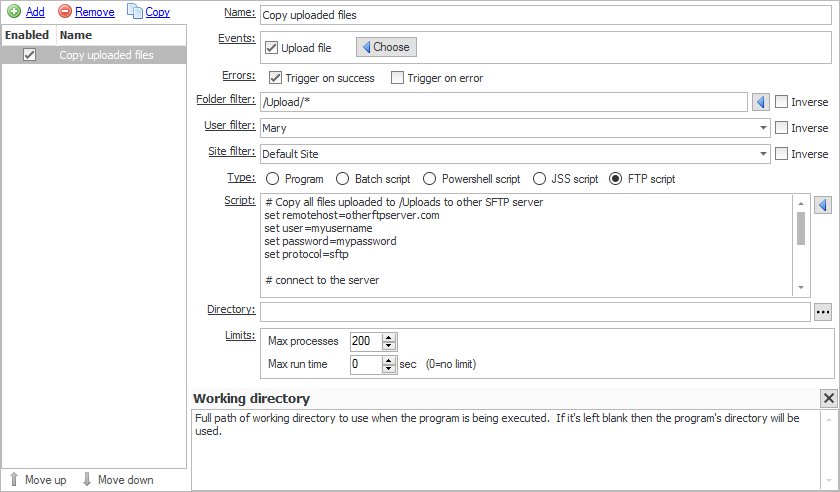
CompleteFTP supports highly customizable, process execution triggers. This means that when an
event such as a file upload occurs, a process can be launched (e.g to move a file after it has
been uploaded).
Process control
In the Process Execution tab, the maximum number of concurrent processes (default
200) and the maximum run time can be set.
The latter setting has a default of 0 which means no limit.
Creating and editing triggers
The list of current process triggers is displayed in the Process Execution tab. Use Remove
to delete triggers, and Add to create a new trigger.
When adding, enter an appropriate name for the trigger, and select which Events the trigger
is applicable for. The various fields are described below:
Events
Processes may be triggered by any of the types of events listed below. By default, events are
only triggered when an operation, such as a file upload, succeeds, but they may also be triggered
on failure. This is determined by the checkboxes labelled 'Trigger on success' and 'Trigger on
error'.
Upload file
When a file has been uploaded. All macros are available.
Download file
When a file has been downloaded. All macros are available.
Move file
When a file has been renamed or moved. All macros are available.
Delete file
When a file has been deleted. All macros are available.
Create folder
When a new folder has been created by a user. All macros are available.
Move folder
When a folder has been renamed or moved by a user. All macros are available.
Delete folder
When a folder has been deleted by a user. All macros are available.
Log in
When a user logs in. All macros are available.
Log out
When a user logs out. All macros are available.
Scheduled
Events occur at a predefined schedule, such as once per hour or at midnight every weekday. See here for details. Since this event is not related to any
particular session macros related to users and files are not available.
Server start
When the CompleteFTP Windows service starts.
Server stop
When the CompleteFTP Windows service stops gracefully. This event will not trigger if the service stops ungracefully.
Site start
[Enterprise MFT only] When a site starts.
Site stop
[Enterprise MFT only] When a site stops.
Auto-ban
When an IP address has been auto-banned.
SSL/TLS certificate expiring
When a user tries to connect via FTPS or HTTPS and the server certificate is due to expire in less than 30 days. Note that this event is triggered at most once every 24 hours or after the CompleteFTP service has been restarted.
SSL/TLS certificate expired
When a user tries to connect via FTPS or HTTPS and the server certificate has expired. Note that this event is triggered at most once every 24 hours or after the CompleteFTP service has been restarted.
Cluster synchronization failed
[Enterprise MFT only] When the primary fails to synchronize with a secondary.
Filters
Filters restrict events based on a set of criteria that are defined by the administrator. These criteria
may be based on
(1) the folder in which a file-operation is taking place,
(2) the user performing the operation, and/or
(3) the site on which the operation is taking place.
Folder filter
The folder- or file-path filter may be used to select the
files/folders for which the event should be triggered.
By default Windows-style wildcards are used for matching.
For example, if the event should be triggered only for files with the extension .dat in the folder
/Home/MyUser then the filter should be set to /Home/MyUser/*.dat. If the event
should be triggered for files named test.dat in any directory, then the filter should be set to
*/test.dat.
Filters may be inverted by checking the checkbox labelled 'Inverse'. If this is done then the event will
occur for all files/folders that don't match the filter.
Regular expressions (.NET-style) may also be used. To use these, the filter should be prefixed by
'regex:'. Information on .NET regular expressions may be found on the Microsoft(tm) website. Note
that multiple filters may be defined using regular expressions using the syntax,
regex:^(/Folder1/.*|/Folder2/.*), which would match anything underneath the folders,
/Folder1 and /Folder2.
Example
To test that this filter can filter the files/folder whose name only has a number in it:
Under folder user1, create 2 folders: abc and 123.
Folder filter: regex:^(/Home/user1/[0-9]/*).
Upload any file to folder 123 (or its subfolder - 123/456), the email will be sent.
Upload a file to abc or its subfolder, no email will be sent because this abc folder is not match the /Home/user1/[0-9]/* filter.
The main point here is it checks the folder path, so without the path (/Home/user1/...), it won't work.
User can change the [0-9] to [a-z] to see the opposite result of steps 3. and 4. above.
User filter
A user filter may be used to select the users for which an event should occur, or if it's inverted, the
users for which it shouldn't occur. By default it will occur for all users. Users may be selected simply
by checking the box next to them in the dropdown list, which is displayed when the user filter control is clicked.
Example
To test that this filter can filter for the user 'user1' only:
User filter: set as user1.
Login to server via FileZilla using user 'user1' and upload a file.
Check email, as there is an email sent and received.
Continue to login to the server with FileZilla using user 'user2' and upload a file.
Check email again, no email is sent.
Site filter
[Enterprise MFT only] A site filter may be used to select the sites for which an event should occur or,
if it's inverted, the sites on which it shouldn't occur. By default it will occur on all sites. Sites may be selected simply
by checking the box next to them in the dropdown list, which is displayed when the site filter control is clicked.
Type
CompleteFTP supports five types of process triggers:
Program
Execute a specified executable. The full path of the executable must be set in the 'Program file' field.
Any required arguments may be specified in the 'Arguments' field. These may includes any of the macros
displayed when the button to the right of the field is clicked (e.g. %FileName%, %LoginUserName%). The
working directory may be specified in the 'Directory' field. Note that if there's a possibility that
there's a space character in a macro variable then the macro should be in quotes.
Batch script
Batch scripts use the common DOS/Windows batch commands. Scripts should be entered directly into the 'Script'
field. Various macros may be entered manually or inserted by selecting them from the menu which is displayed when
the button to the right of the 'Script' field is clicked (e.g. %FileName%, %LoginUserName%). The
working directory may be specified in the 'Directory' field. Note that if there's a possibility that
there's a space character in a macro variable, then the macro should be in quotes. If an existing batch file
is to be executed then the 'Program' type should be used with the path of the batch file as the 'Program file'
argument.
Powershell script
Powershell scripts use the standard Microsoft Powershell syntax. Scripts should be entered directly into the 'Script'
field. Various macros may be entered manually or inserted by selecting them from the menu which is displayed when
the button to the right of the 'Script' field is clicked (e.g. %FileName%, %LoginUserName%). The
working directory may be specified in the 'Directory' field. Note that if there's a possibility that
there's a space character in a macro variable then the macro should be in quotes. If an existing Powershell file
is to be executed then the 'Program' type should be used, with the path of the batch file as the 'Program file'
argument.
JSS script
JSS (Javascript Server-Side) is Javascript combined with a set of API's for common tasks and integration with CompleteFTP.
JSS scripts are executed within the CompleteFTP service.
The JSS API's provide access to CompleteFTP's
virtual file-system and commonly used functionality, such as
FTP/SFTP, HTTP, e-mail
and databases. Various macros are available
within a JSS process trigger script via properties of the variable called event. These can be inserted into the
script via the button to the right of the editor.
JSS permits use of .NET classes (e.g. var xmlDoc = new System.Xml.XmlDocument()) so that the standard
.NET libraries are available if required.
FTP script
FTP scripts are a sequence of commands similar to those used in command-line FTP applications (e.g. GET and PUT),
preceded by a set of commands to set connection parameters. Full details may be found
here. Note that JSS includes an FTP/SFTP client (see
here) so, since Javascript
allows proper programming as opposed to just a fixed sequence of commands, in many cases using JSS scripts is
recommended above that of FTP scripts.
Macro sanitization
Macro values such as %FileName% and %LoginFullName%
are supplied by remote users (the former from an uploaded file's name,
the latter from a user-editable profile field). To prevent a
maliciously-crafted value from breaking out of the script and executing
arbitrary commands, CompleteFTP replaces characters that are special to
the target interpreter with an underscore (_) before
substitution. The exact set depends on the trigger type:
Program
No characters are stripped. Each argument is passed to the program as a
discrete element (it is never re-parsed by a shell), so a macro value
— even one containing spaces, quotes or newlines — is delivered
verbatim and cannot close the surrounding argument or inject a new one.
Batch script
All control characters (including carriage-return and line-feed) and the
cmd.exe metacharacters " % ! & | < > ^ ( ) are stripped
from each macro value.
Powershell script
All control characters (including carriage-return and line-feed) and the
PowerShell metacharacters ' " ` $ % ; | & < > ( ) { } [ ] # , =
(and the “smart” quote variants) are stripped from each macro value.
FTP script
All control characters (including carriage-return and line-feed, which
would otherwise inject a new command since FTP scripts are line-based) and
the characters " ` % = are stripped from each macro value.
JSS script
No substitution is performed on the script text. Macro values are
exposed as properties of the event object and are
therefore safe to use without escaping.
As a result, file names or profile fields containing the characters listed
above will appear with underscores when substituted into a Batch, PowerShell
or FTP script via the old %Macro% form. To use the original,
un-altered value in a Batch or PowerShell script, reference it through the
environment instead (!FileName! in a batch script,
${env:FileName} in PowerShell — see
Using macro values safely below); in a JSS script, read
it from the event object.
Using macro values safely (Batch and PowerShell)
For Batch and PowerShell triggers, CompleteFTP also makes every macro value
available as an environment variable. This is the recommended
way to use macro values: because the value is passed to the script through the
environment rather than substituted into the script text, it is never
altered (no underscore sanitization) and cannot break out of the script.
New scripts should use this form; the old %Macro% form
is retained only for backward compatibility.
The environment-variable name is the macro name without the surrounding
% signs. The date/time macros are the only exception — they
are prefixed with Event so they don't collide with cmd's built-in
%DATE%/%TIME%: %Date% →
EventDate, %Time% → EventTime,
%DateAndTime% → EventDateAndTime.
Batch script (cmd)
Reference the variable using delayed-expansion syntax,
!FileName!. CompleteFTP automatically enables delayed expansion
(it prepends @setlocal enabledelayedexpansion) when it sees a
macro referenced this way, so no change to the script is needed. For example:
echo File "!FileName!" was uploaded by !LoginUserName! at !EventTime! >> "C:\Temp\uploads.log"
PowerShell script
Reference the variable as ${env:FileName}. No mode change is
required. For example:
Add-Content "C:\Temp\uploads.log" "File '${env:FileName}' was uploaded by ${env:LoginUserName} at ${env:EventTime}"
The Manager's macro menu inserts the correct form automatically for the
selected trigger type. The environment-variable convention applies to Batch and
PowerShell only; Program triggers receive macro values as discrete arguments, and
FTP scripts use the %Macro% form (with the sanitization above).