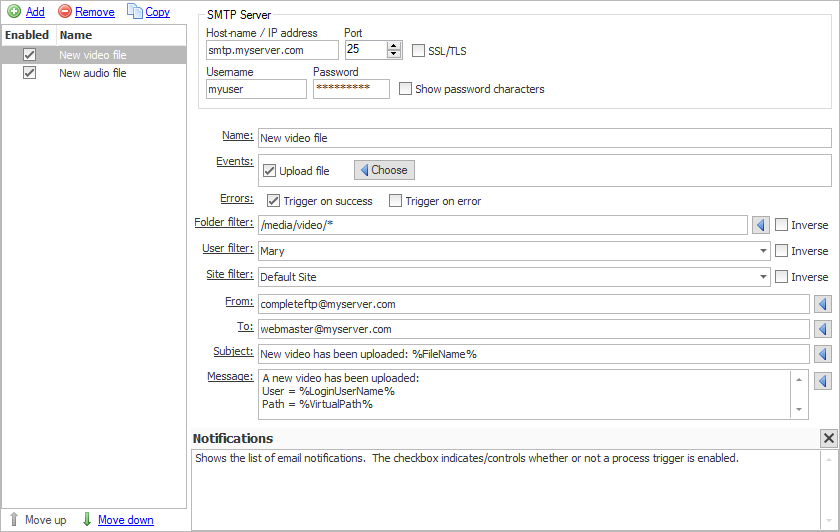
CompleteFTP supports highly customizable email notifications. This means that when an event such as a file upload occurs, an email can be sent.
To set up email notifications, the mail server (SMTP server) settings must be entered. The server hostname, port number (normally port 25) and optional username and password are entered in the Email Notification tab found in the Events panel. SSL connections are also permitted by checking the "Enabled SSL/TLS" checkbox. For SSL, the port number will most likely need to be changed - the default SMTP SSL port is 465.
The list of current notifications is displayed in the Email Notification tab. Use Remove to delete notifications, and Add to create a new notification.
Enter an appropriate name for the notification, and select what Events the notification is applicable for. The various fields are described below:
Processes may be triggered by any of the types of events listed below. By default, events are only triggered when an operation, such as a file upload, succeeds, but they may also be triggered on failure. This is determined by the checkboxes labelled 'Trigger on success' and 'Trigger on error'.
Filters restrict events based on a set of criteria that are defined by the administrator. These criteria may be based on: (1) the folder in which a file-operation is taking place, (2) the user performing the operation, and/or (3) the site on which the operation is taking place.
The folder- or file-path filter may be used to select the files/folders for which the event should be triggered. By default Windows-style wildcards are used for matching. For example, if the event should be triggered only for files with the extension .dat in the folder /Home/MyUser then the filter should be set to /Home/MyUser/*.dat. If the event should be triggered for files named test.dat in any directory, then the filter should be set to */test.dat.
Filters may be inverted by checking the checkbox labelled 'Inverse'. If this is done then the event will occur for all files/folders that don't match the filter.
Regular expressions (.NET-style) may also be used. To use these, the filter should be prefixed by 'regex:'. Information on .NET regular expressions may be found on the Microsoft(tm) website. Note that multiple filters may be defined using regular expressions using the syntax, regex:^(/Folder1/.*|/Folder2/.*), which would match anything underneath the folders, /Folder1 and /Folder2.
To test this filter to see if it can filter the files/folders whose name has only got a number in it.
The main point here is it check the folder path, so that without the path (/Home/user1/...), it won't work.
User can change the [0-9] to [a-z] to see the opposite result of 3. and 4.
A user filter may be used to select the users for which an event should occur, or, if it's inverted, the users for which it shouldn't occur. By default it will occur for all users. Users may be selected simply by checking the box next to them in the dropdown list that's displayed, when the user filter control is clicked.
How to test this filter so that it can be used to filter for the user, 'user1' only:
[Enterprise MFT only] A site filter may be used to select the sites for which an event should occur or, if it's inverted, the sites on which it shouldn't occur. By default it will occur on all sites. Sites may be selected simply by checking the box next to them in the dropdown list that's displayed when the site filter control is clicked.
Enter the email address that the email notification is set to originate from. The %OwnerEmail% (email address of folder owner) or %LoginEmail% (email address of logged-in user) macros may be used here.
Enter the email address that the email notification is sent to. The %OwnerEmail% (email address of folder owner) or %LoginEmail% (email address of logged-in user) macros may be used here.
Enter the subject of the notification message. Various macros can be used here.
Enter the body of the notification message. Various macros can be used here.
For an example on setting up an email notification, please refer to Step-by-step guide: E-mail notification when a file is uploaded.