CompleteFTP (Professional and Enterprise MFT only) supports SSH terminal access. This means that a command-line SSH client can SSH onto the CompleteFTP server machine, obtain a shell and use various command-line commands.
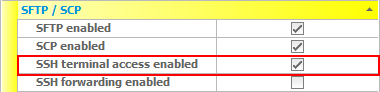
Note that CompleteFTP must have SSH terminal access enabled (disabled by default).
And the user must also have SSH terminal access enabled.
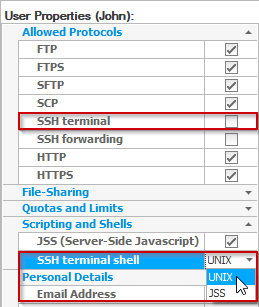
Both Windows and non-Windows (internal) users can be granted terminal access. However as non-Windows users run by default as the local SYSTEM user, for security reasons they are not permitted to exec processes.
The setting, 'SSH terminal shell', determines the type of command-line that the user is given when they log in via SSH terminal.
The 'UNIX' shell offers UNIX-like commands, such as ls, cwd and pwd. A list may be obtained by executing the command, help. If an administrator logs in in this way then administration commands, such as useradd and folderadd, are available.
The JSS shell is a Javascript interpreter environment, similar to that found in the developer tools in browsers like Google Chrome and Microsoft Edge. The full JSS API is available. If an administrator is connected then configuration changes may be made via the Config object returned by the system.getConfig() function.
Once the server settings (in SFTP/SCP/SSH settings) are enabled for SSH terminal access, users can login to CompleteFTP via ssh username@hostname, from any command-line SSH client on any operating system.
Once logged in, users are presented with a simple Unix-like command-line shell that permits certain commands, such as changing directory, creating directories, and copying and renaming files.
The help command lists all available commands.
The most useful command (and only permitted for Windows users) is exec, which can be used to launch programs and scripts. For example, to run a DOS command such as 'echo', you would use the standard 'cmd' program, e.g.
exec cmd /c echo test
The same technique can be used to run the DOS 'type' command to display the contents of a text file:
exec cmd /c type test1.txt
For DOS commands, the '/c' flag is necessary as it instructs the DOS shell to terminate after running the command.