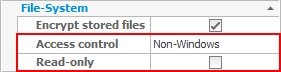
Access to files is controlled either by CompleteFTP itself or by the Windows file-system. For non-Windows users CompleteFTP will always control access. Windows users will be subject to Windows' own file-system permissions by default, though this can be changed (see below).
Access control for Windows users can be managed by CompleteFTP if the 'access control' property of those users has been manually set to 'non-Windows'. It's also possible restrict users to read-only access by setting the 'read-only' property of those users.
While Windows file-system permission may be viewed from within CompleteFTP Manager (see 'Access (Windows users)') they can't modified from there. Windows Explorer must be used to edit Windows permissions.
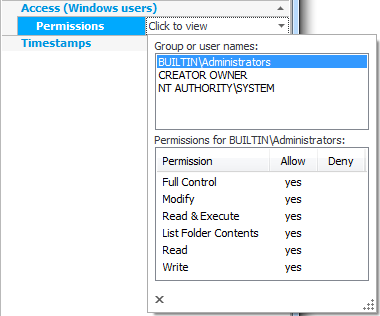
Standard, Professional and EnterpriseMFT editions of CompleteFTP have enhanced permission controls from 22.0 onwards. Previously, the Standard Edition shared basic permission controls with the Free Edition.
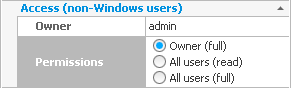
In Free Edition, three levels of access are available for each folder:
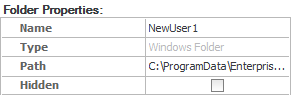
The owner of the folder can be selected in the Folder Properties section of the File System panel. The user permissions are shown as radio buttons under Access (non-Windows users).
The Standard, Professional and Enterprise MFT editions of CompleteFTP offer a permission system that's similar to that used in UNIX-like systems, such as Linux and OSX. This system was chosen because it's simple, flexible and widely known.
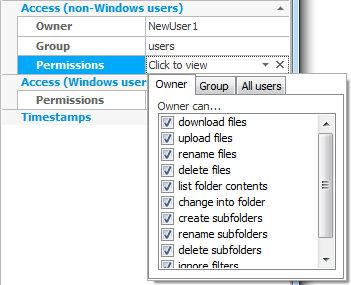
Permissions are managed in three different scopes: owner, group and all users. Each folder in the CompleteFTP's file-system will either inherit permissions from its parent folder or specify an owner, a group and a set of permissions for each of these scopes. Permissions are defined separately for the owner, the group and all users. The following permissions are available:
A user will have permission to perform a particular action if:
The owner of the folder can be selected in the Folder Properties section of the Folders panel. The folder's group can be selected from the list of user groups. Any non-Windows user who is a member of that group will be granted the permissions that group has on the folder. Finally the permissions are shown. Click on "[Click to view]" and a popup will display the permissions for the folder's owner, group, and for all users. The permissions themselves are self-explanatory.
If the Hidden checkbox is checked then the folder will not show up in listings. This works independently of access permissions. For example, a folder may be shown but not accessible, or it may be hidden but still accessible.